Does Turnitin Check Google Docs, PDFs, and Other File Types?
Turnitin reads text, not files — which is why a scanned PDF can fail silently while a Google Doc works fine. Here's exactly what formats are accepted, what gets skipped, and the size limits that catch people off guard.
The quick answer
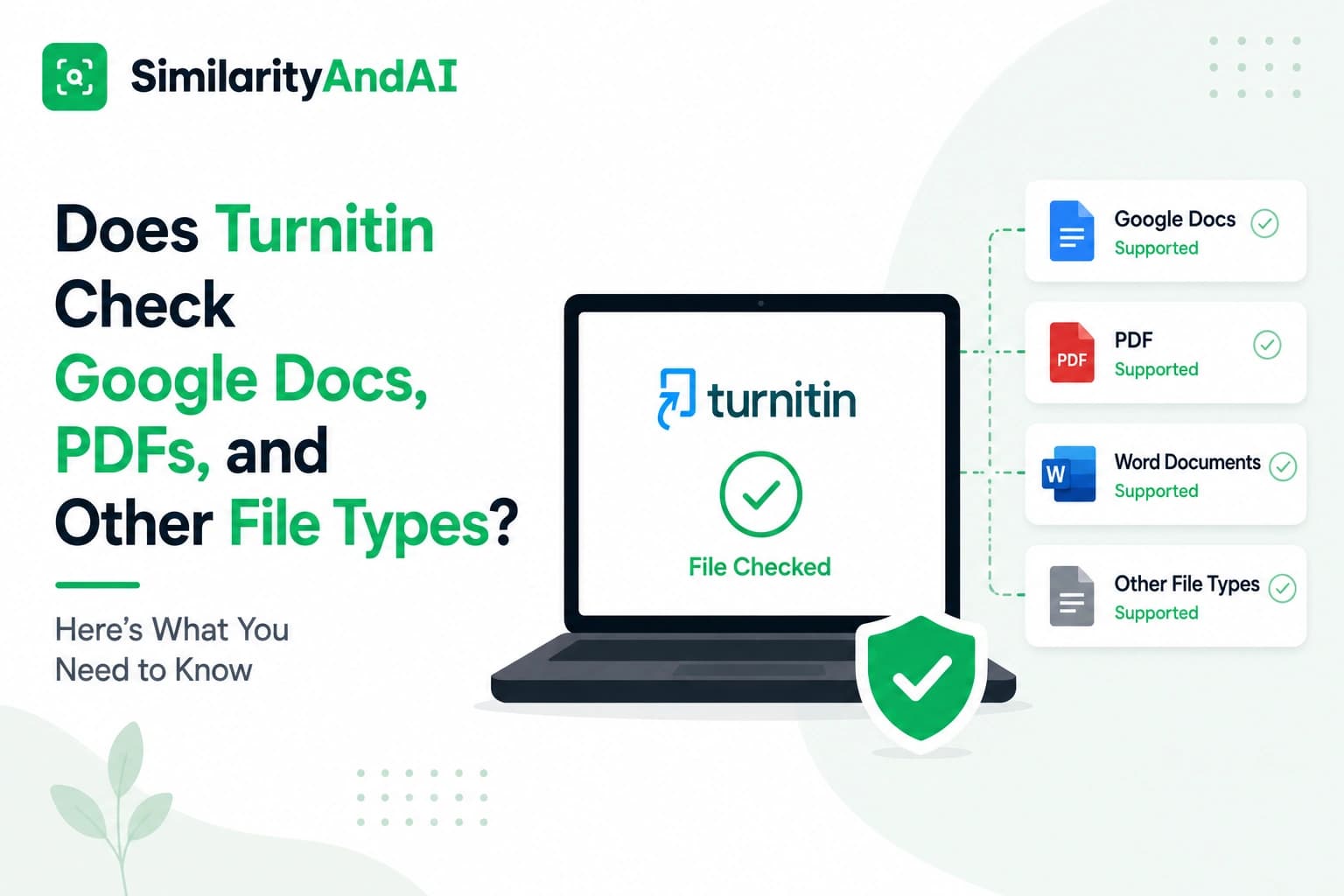
Yes to both, with one important catch on PDFs. Turnitin accepts a wide range of formats — Word documents, Google Docs (submitted correctly), PDFs, PowerPoint, Excel, plain text, and several others — but it needs actual, selectable text to work with. A scanned PDF that's really just a photograph of a printed page will upload fine and then fail, because there's no text underneath the image for Turnitin to read. Understanding that distinction — text versus image of text — explains most of the confusion students run into with file submissions.
Why file type matters more than you'd expect
Turnitin's similarity and AI detection engines operate on extracted text, not on the visual appearance of a document. Whatever format you submit gets converted into plain text internally before any comparison happens. That's true regardless of source format — a Word doc, a PDF, and a Google Doc containing the exact same words should all produce essentially the same similarity result, because by the time the comparison runs, format differences have already been stripped away. The format only matters at the submission stage: can Turnitin successfully extract text from this specific file or not.
Accepted formats
Per Turnitin's own file requirements documentation, accepted formats include:
- Microsoft Word (.doc, .docx)
- Microsoft PowerPoint (.ppt, .pptx, .pps, .ppsx) — converted internally to a static PDF, keeping text and images but dropping presenter notes, video, and animation
- Microsoft Excel (.xls, .xlsx)
- Adobe PDF — provided it contains real, selectable text
- OpenOffice Text (.odt)
- Rich Text Format (.rtf)
- Plain text (.txt)
- HTML and PostScript files
- Google Docs, submitted via Google Drive integration rather than as a direct file upload
Google Docs specifically
Google Docs work with Turnitin, but not by uploading a .gdoc file from your computer — that file type doesn't actually contain your document's content, only a reference pointing to it online. Instead, Turnitin's Google Drive integration connects directly to your Drive account and pulls the real document content from there. Many institutional Turnitin setups support this natively, either through a "submit from Google Drive" option on the upload screen or through a dedicated Google Docs add-on that submits for a similarity check without leaving the document. If your assignment interface only shows a plain file-upload button, exporting your Google Doc to Word or PDF format first and uploading that file directly is the more reliable path.
The scanned PDF problem
This is the single most common file-related submission problem, and it's worth understanding precisely why it happens. When you scan a printed page or a handwritten page and save it as a PDF, what you get is an image file wrapped in PDF packaging — visually it looks like a document, but there's no underlying text layer, just pixels arranged to look like letters. Turnitin's system explicitly does not accept PDF image files, forms, portfolios, or any file without extractable, highlightable text, and a scanned page falls squarely into that category.
You can check this yourself before submitting: open the PDF and try to select and copy a line of text with your cursor. If nothing highlights — if you can only select the whole page as an image — Turnitin will have the same problem. Turnitin's own guidance recommends generating PDFs directly from Word or Adobe Acrobat rather than scanning, since those tools embed real text. If you're starting from a scanned or image-based document, running it through OCR (optical character recognition) software first, and manually reviewing the output for errors, is the recommended fix before attempting to submit.
Size and length limits
Beyond format, Turnitin enforces a few hard limits worth knowing before you submit anything unusually long or short. Per its own documentation, a submission must contain at least 20 words of text — shorter documents won't generate a similarity or AI report at all, regardless of format. On the upper end, files must be under 100MB and less than 800 pages, with a tighter 2MB cap specifically for plain .txt files. A typical essay or dissertation chapter sits nowhere near these limits; they mostly become relevant for unusually large files — a document with many embedded high-resolution images, for instance — or for very short excerpts submitted for a quick check.
What Turnitin skips inside an accepted document
Even within an otherwise valid submission, not every element gets analyzed the same way. Turnitin's comparison is fundamentally text-based, which has a few practical consequences: images, embedded photos, and charts are not analyzed for originality at all — Turnitin doesn't "look at" visual content the way it reads text. A caption or label attached to an image can still be checked, since that's ordinary text, but the visual content of the image itself is not. Tables and graphs built from actual editable text or spreadsheet data are generally readable, while a table pasted in as a screenshot or image is not, for the same underlying reason as the scanned-PDF problem above. Footnotes, endnotes, and certain formatted text elements can also behave differently from the main body text depending on how they're structured in the source file.
How to check your file before you submit
A quick pre-submission check avoids most format-related surprises: confirm you can select and copy text from your final file (not just view it), confirm your file size and page count are comfortably under the limits above, and if you're working from a Google Doc, use your institution's actual submission method — Drive integration or a direct export — rather than uploading a raw .gdoc file. This matters just as much when you're checking a draft ahead of time, a workflow covered in more depth in our piece on how to check your Turnitin score before submitting — a format problem in a pre-submission check wastes the same time it would waste on the real thing.
The bottom line
Turnitin supports a genuinely wide range of formats — Word, PDF, Google Docs, PowerPoint, Excel, plain text, and more — but every one of them ultimately needs to resolve to real, extractable text. Scanned PDFs are the most common failure point, images and charts are never analyzed as visual content, and there are hard size and length limits worth knowing before you submit anything unusual. None of this affects your actual similarity or AI score once a file is successfully read — format only determines whether the check can run at all.
If you want to see your real similarity and AI detection results before you submit, you can check your reports through SimilarityAndAI — the same Turnitin engine your institution uses.
Frequently asked questions
Why does Turnitin reject my PDF even though it opens fine?
The most common cause is that your PDF is actually an image of text rather than selectable text — typically the result of scanning a printed page rather than exporting directly from a word processor. Turnitin needs to extract and read the actual text characters; it can't analyze a picture of a page, even though the PDF opens and displays normally. You can test this yourself by trying to select and copy a line of text from the PDF — if nothing selects, Turnitin won't be able to read it either.
Can I submit a Google Doc directly to Turnitin?
Not as a .gdoc file uploaded from your computer — that file type only contains a link to the document stored online, not the actual content. Turnitin's Google Drive integration handles this correctly by connecting to your Drive account and pulling the real content directly, and many institutions' Turnitin setups support submitting straight from Google Drive for exactly this reason.
Does Turnitin check the images and charts in my document?
No — Turnitin analyzes text, not visual content. Images, embedded charts, and photos are not scanned for originality. Text captions, labels, or notes attached to an image can still be checked, and content in an editable table (as opposed to an image of a table) is generally readable, but the visual content itself is not analyzed the way written text is.
What's the smallest and largest document Turnitin will accept?
Per Turnitin's own file requirements, a submission needs at least 20 words of text to generate a report, and the file must be under 100MB and less than 800 pages (2MB specifically for plain .txt files). Very short documents below Turnitin's minimum won't generate a similarity or AI score at all, regardless of format.
Ready to check your paper?
Get your Turnitin reports in minutes.
Same reports your institution generates — delivered privately, fast.